How to Make Background Transparent with Luminar Neo
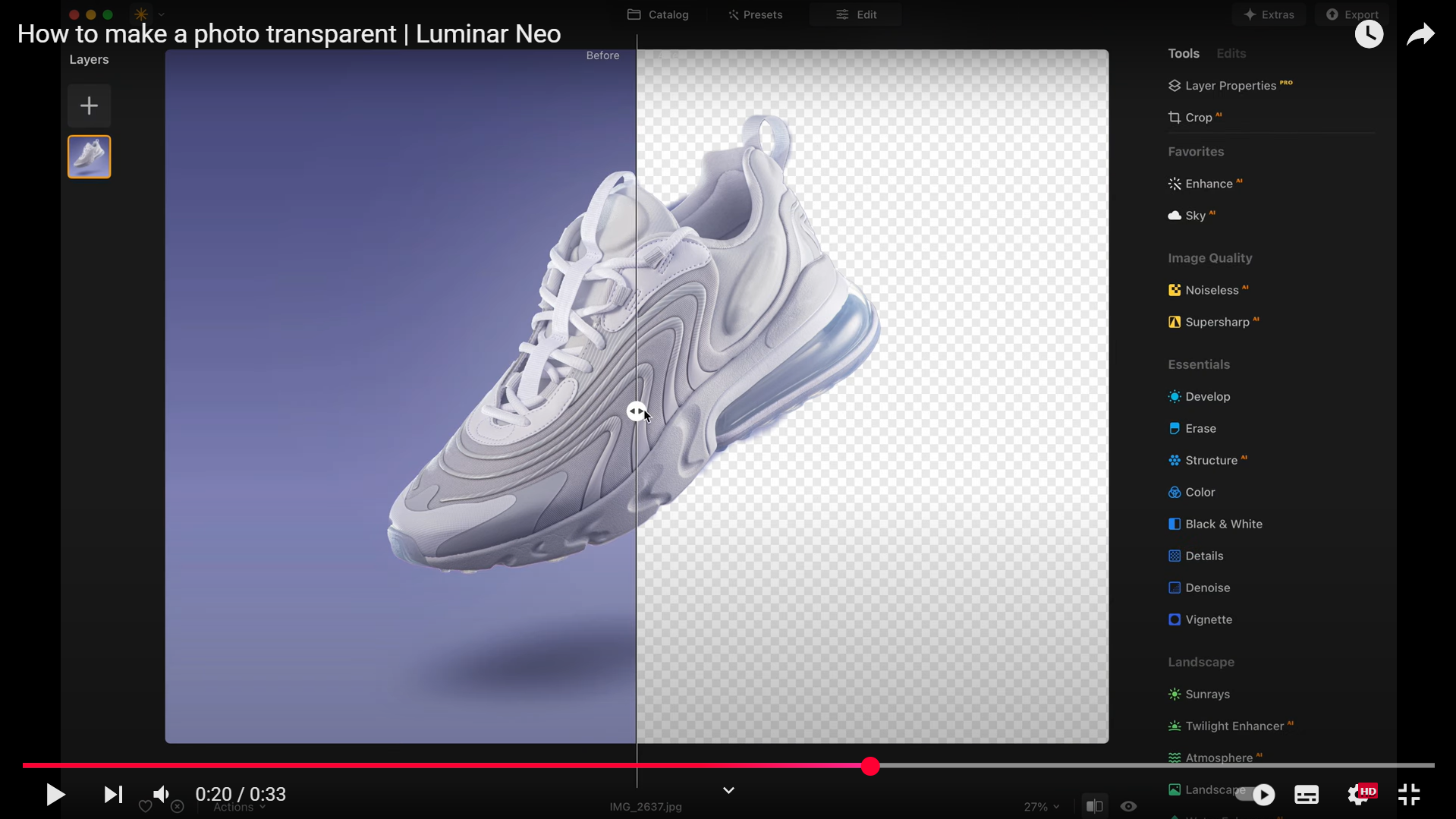
Before & After: See the Difference
More Than Background Removal: Powerful AI Photo Editing Tools
Change Your Background in 3 Steps
Start Editing with Luminar Neo
Try Luminar Neo FreeReady to remove backgrounds in seconds? Download Luminar Neo’s free trial and start editing with powerful AI tools.
What Our Customers Say
From quick background removal to impressive creative edits, users love how easy Luminar Neo makes it to create transparent backgrounds. Many photographers highlight the intuitive interface, clean results, and time saved during their editing workflow.
Frequently Asked Questions about Transparent Backgrounds
How to make a transparent background?
Upload your image and select the Background Removal AI tool. Luminar Neo automatically detects the subject—whether it’s a person, object, or animal—and separates it from the background with precision. You can make picture background transparent without manual cutting or complex selections.
Can I make an image background transparent without special skills?
Yes. Luminar Neo simplifies the entire process. The AI analyzes the image, removes the background, and lets you export it in just a few steps. Even beginners can create transparent backgrounds quickly.
How does the background removal process work?
Luminar Neo’s AI analyzes shapes, edges, and contrast to identify the main subject in your image. Once you select Remove Background, the software separates it automatically, allowing you to make photo background transparent in just a few clicks. You can then refine the result or place the subject on a new background.
Why choose Luminar Neo for this?
Luminar Neo combines powerful AI tools with an intuitive interface. It helps you easily make white background transparent, isolate subjects, and refine your photos. Available on desktop and with Luminar Mobile, it lets you edit anywhere with a fast, simple workflow and full creative control.
Does image quality stay intact after making the background transparent?
Yes. Luminar Neo preserves the full quality of your image when you make a transparent background. The software keeps the subject’s details, sharpness, and colors intact, ensuring high-quality results suitable for design, presentations, or professional projects.
Which file formats support transparency? (PNG, SVG, etc.)
The most common format for transparent backgrounds is PNG. Luminar Neo also supports TIFF and WEBP, which can preserve transparency in certain workflows. SVG is typically used for vector graphics rather than photos.